

Apple has released security updates for iPhones, iPads, Macs, Apple Watches, Apple TVs, and Safari, fixing, in particular, a zero-day flaw that is actively exploited in targeted attacks.
Exploiting this zero-day flaw would allow cybercriminals to run any code they want on the affected device, potentially installing spyware or backdoors without the owner noticing.
Installing these updates as soon as possible keeps your personal information—and everything else on your Apple devices—safe from such an attack.
CVE-2026-20700
The zero-day vulnerability tracked as CVE-2026-20700, is a memory corruption issue in watchOS 26.3, tvOS 26.3, macOS Tahoe 26.3, visionOS 26.3, iOS 26.3 and iPadOS 26.3. An attacker with memory write capability may be able to execute arbitrary code.
Apple says the vulnerability was used as part of an infection chain combined with CVE-2025-14174 and CVE-2025-43529 against devices running iOS versions prior to iOS 26.
Those two vulnerabilities were already patched in the December 2025 update.
Updates for your particular device
The table below shows which updates are available and points you to the relevant security content for that operating system (OS).
| iOS 26.3 and iPadOS 26.3 | iPhone 11 and later, iPad Pro 12.9-inch 3rd generation and later, iPad Pro 11-inch 1st generation and later, iPad Air 3rd generation and later, iPad 8th generation and later, and iPad mini 5th generation and later |
| iOS 18.7.5 and iPadOS 18.7.5 | iPhone XS, iPhone XS Max, iPhone XR, iPad 7th generation |
| macOS Tahoe 26.3 | macOS Tahoe |
| macOS Sequoia 15.7.4 | macOS Sequoia |
| macOS Sonoma 14.8.4 | macOS Sonoma |
| tvOS 26.3 | Apple TV HD and Apple TV 4K (all models) |
| watchOS 26.3 | Apple Watch Series 6 and later |
| visionOS 26.3 | Apple Vision Pro (all models) |
| Safari 26.3 | macOS Sonoma and macOS Sequoia |
How to update your Apple devices
How to update your iPhone or iPad
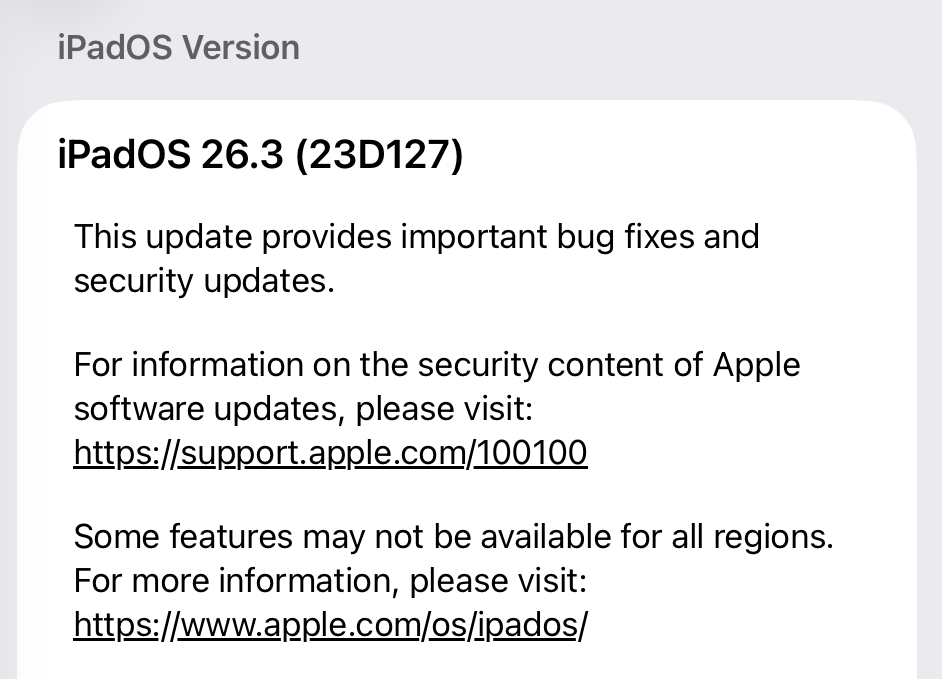
For iOS and iPadOS users, here’s how to check if you’re using the latest software version:
- Go to Settings > General > Software Update. You will see if there are updates available and be guided through installing them.
- Turn on Automatic Updates if you haven’t already—you’ll find it on the same screen.
How to update macOS on any version
To update macOS on any supported Mac, use the Software Update feature, which Apple designed to work consistently across all recent versions. Here are the steps:
- Click the Apple menu in the upper-left corner of your screen.
- Choose System Settings (or System Preferences on older versions).
- Select General in the sidebar, then click Software Update on the right. On older macOS, just look for Software Update directly.
- Your Mac will check for updates automatically. If updates are available, click Update Now (or Upgrade Now for major new versions) and follow the on-screen instructions. Before you upgrade to macOS Tahoe 26, please read these instructions.
- Enter your administrator password if prompted, then let your Mac finish the update (it might need to restart during this process).
- Make sure your Mac stays plugged in and connected to the internet until the update is done.
How to update Apple Watch
Ensure your iPhone is paired with your Apple Watch and connected to Wi-Fi, then:
- Keep your Apple Watch on its charger and close to your iPhone.
- Open the Watch app on your iPhone.
- Tap General > Software Update.
- If an update appears, tap Download and Install.
- Enter your iPhone passcode or Apple ID password if prompted.
Your Apple Watch will automatically restart during the update process. Make sure it remains near your iPhone and on charge until the update completes.
How to update Apple TV
Turn on your Apple TV and make sure it’s connected to the internet, then:
- Open the Settings app on Apple TV.
- Navigate to System > Software Updates.
- Select Update Software.
- If an update appears, select Download and Install.
The Apple TV will download the update and restart as needed. Keep your device connected to power and Wi-Fi until the process finishes.
How to update your Safari browser
Safari updates are included with macOS updates, so installing the latest version of macOS will also update Safari. To check manually:
- Open the Apple menu > System Settings > General > Software Update.
- If you see a Safari update listed separately, click Update Now to install it.
- Restart your Mac when prompted.
If you’re on an older macOS version that’s still supported (like Sonoma or Sequoia), Apple may offer Safari updates independently through Software Update.
More advice to stay safe
The most important fix—however inconvenient it may be—is to upgrade to iOS 26.3 (or the latest available version for your device). Not doing so means missing an accumulating list of security fixes, leaving your device vulnerable to newly found vulnerabilities.
But here are some other useful tips:
- Make it a habit to restart your device on a regular basis.
- Do not open unsolicited links and attachments without verifying with the trusted sender.
- Remember: Apple threat notifications will never ask users to click links, open files, install apps or ask for account passwords or verification codes.
- For Apple Mail users, these vulnerabilities create risk when viewing HTML-formatted emails containing malicious web content.
- Malwarebytes for iOS can help keep your device secure, with Trusted Advisor alerting you when important updates are available.
- If you are a high-value target, or you want the extra level of security, consider using Apple’s Lockdown Mode.
We don’t just report on phone security—we provide it
Cybersecurity risks should never spread beyond a headline. Keep threats off your mobile devices by downloading Malwarebytes for iOS, and Malwarebytes for Android today.